Showing posts with label Troubleshoot. Show all posts

Monday, August 2, 2010

SQL 2008 R2 Setup Error -'' is not a valid login or you do not have permission.

This time i had face another one issue. When I was trying to install SQL 2008 R2 enterprise edition on my laptop i got below error.

The following error has occured:
'' is not a valid login or you do not have permission.

This error occurs when system name and login names are same. My laptop and login names are same.
This error occurs after adding my login accounts in "Specify SQL Server administrators" on "Database Engine Configuration" tab.


How to get rid this error?

We can achieve this goal using 2 methods.
1. Login in two another windows login account and install.
2. Do not add your account and add another account which name is differ from system. I have used VM.

I have tried both methods and succeeded.

Sunday, June 13, 2010

SQL 2000 to SQL 2008 Upgrade

This time I had faced very strange issue. Setup closed automatically with out any waring or error after setup support file installation. There is no error in event log and setup boot strap folder. I had tried SP1 slipstream but setup throws different error.

So, I had upgraded SQL 2000 to 2005 without any issues and was trying to upgrade SQL 2005 to 2008 but setup closed once support file installation completed.

Setup closed after setup support file so I had installed setup support file from SP1. First we need to extract setup file using below statement.

Extract Command
SQLServer2008SP1-KB968369-x86-ENU.exe /x:T:\SP1

Once extracted, just run support setup file which is located in below mentioned path.

SP1\x64\setup\1033\sqlsupport.msi

Now setup moved to next step. But middle of the setup I got below error.


Error

The specified local group already exists. (Exception from HRESULT:0x80070563)
Click 'Retry' to retry the failed action, or click 'Cancel' to cancel this action and continue setup.

I just pressed 'Cancel' and continue the setup but setup finished incompletely. I had tried setup repair option but same error.

What is the issue?. Setup was trying to re create the local Windows SQL related groups but failed. I removed below mentioned groups in Windows group.

SQLServerFDHostUser$wilsqlp11$MSSQLSERVER
SQLServerMSSQLUser$wilsqlp11$MSSQLSERVER
SQLServerSQLAgentUser$WILSQLP11$MSSQLSERVER

Restarted the repair activity, now I got the error "No mapping between account names and security IDs was done". Setup was trying to map previously created Local groups to SQL server but failed. Pressed 'Cancel' button and continue the setup. Few times, the error was appeared. Finally upgrade completed successfully. Windows local groups were created automatically.

Tuesday, May 25, 2010

SQL 2008 Upgrade in Cluster Environment Setup Issue

Cooool feature

SQL 2005 to SQL 2008 upgraded in cluster environment is very very interesting and fantastic. Yes, it is really amazing. There are no downtime required for SQL 2008 upgrade. Start upgraded from passive mode and finally move active node to passive node and upgrade. For example environment has 3 cluster node with named clusa, clusb, clusc nodes. clusa is active remaining are passive node. Apply upgrade in passive node one by one. Setup wont upgrade all instances simultaneously. during this upgraded SQL server is online and running with SQL 2005 version. Once upgraded is completed in passive node than move cluster resources to passive node. Now you will the big surprise, yes... SQL server is running in clusb with SQL 2008 version. Finally upgrade SQL 2008 on clusa.


Error Message

Cannot execute a program. The command being executed as "c:\WINDOWS\microsoft.NET\Framework\v2.0.50727\csc.exe" /noconfig /fullpaths @"c:\Documents and Settings sqlservices\Local settings\Temp\hin6evfc.cmdline".


Resolution

IIS admin service is bloking .NET freamwork installation. Just stop IIS admin service in service control manager. Now SQL 2008 upgrade will run without any issues.

Saturday, January 9, 2010

SQL Server 2005 Installation Troubleshoot

Couple of months before, I was trying to install SQL 2005 in a new production machine, but middle of the installation received errors and failed with below error.

Error Message:

"Error 1053: The service did not respond to the start or control request in a timely fashion" error message when you stop or pause a managed Windows service.


Also, in the windows event log we had the same error “An unhandled win32 exception occurred in sqlservr.exe [3756]. Just-In-Time debugging this exception failed with the following error: Debugger could not be started because no user is logged on”.


Retried many times but no hope, finally I get throw this error. SQL server setup wont run smoothly, if the server has not 2n processors. I mean, we can install SQL server in 2, 4, 8, 16, 32, … 2n core processors. Machine which I was installing has 6 core processors.

Workaround

Change logical processor value to 1 and now we get throw this error.

Steps for changing logical processor count

1. Click Start, click Run, type msconfig, and then click OK
2. Click the BOOT.INI tab in the System Configuration Utility dialog box.
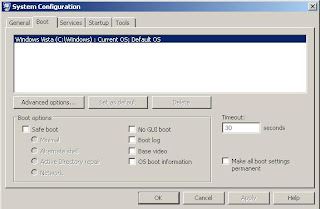


3. Now, click Advanced Options on the BOOT.INI tab
4. In the BOOT.INI Advanced Options dialog box, click to select the /NUMPROC= check box
5. In the list that is next to the /NUMPROC= check box, click 1, and then click OK
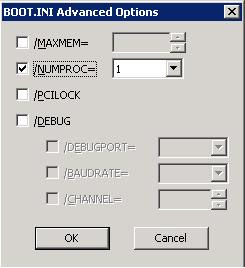


6. That’s it. Now SQL setup will run smoothly.


This bug has been resolved on SP 1, so if you integrate SP2 in SQL setup, you will win this mess.


Integrate SP2 with setup files

1. Copy setup files to local drive

2. Expand SQL Server 2005 SP2 or SP3 package in local drive by using the /X parameter.

SQLServer2005SP2-KB921896-x64-ENU.exe /X
913089 How to obtain the latest service pack for SQL Server 2005

3. Note the full paths to the new .msp files in the expanded update package. For example:
D:\temp\SP2\hotfixsql\files\sqlrun_sql.msp

4. At the command prompt, run the Setup.exe file from the release version by using the appropriate path to involve the new .msp file in the setup.

For example, the following command uses the update package to update the SQL Server Database Engine component to the service pack level:

D:\temp\Servers\setup.exe HOTFIXPATCH="D:\temp\SQL2005_12Procs\SP2\hotfixsql\files\sqlrun_sql.msp"

Note After you complete this step, the installation of SQL Server 2005 is in a configuration that is unsupported.

5. Apply the service pack package by running the hotfix.exe file in the expanded location. This step applies all service pack components and returns the installation of SQL Server 2005 to a supported state.